

A phone microphone looks like a small, simple part. But in real-world repair work, it is one of the most common complaint points. Customers report issues like low voice, no sound during calls, voice notes not recording, or videos capturing silence.
For a repair technician, guessing is not an option. A proper microphone check helps you decide whether the problem is software-based, dirt-related, flex damage, IC-level, or board-related.
“A good technician never replaces parts first. He diagnoses first.”
This guide is written for repair technicians, trainees, and serious learners who want to check a mobile phone microphone professionally, not casually. The methods explained here are used in real repair shops on Android phones, iPhones, and modern smartphones.
Understanding the Microphone System in Smartphones
Before testing, you must understand what you are testing.
How Many Microphones Does a Phone Have?
Most modern devices have multiple microphones, not just one.
- Primary microphone
Used during normal calls and voice recordings. - Secondary microphone
Used for noise cancellation during calls. - Tertiary microphone (in some models)
Used for video recording, speaker mode, or voice assistants.
A phone can appear to have a “mic problem” even if only one mic is faulty.
Common Microphone Locations
- Bottom side near charging port
- Top side near headphone jack or camera
- Rear camera area
- Side frame (on some models)
Knowing mic placement helps in accurate diagnosis.
Common Symptoms of Phone Microphone Problems
A technician should first listen to the complaint carefully. Different symptoms point to different faults.
Typical Mic-Related Complaints
- Other person cannot hear during calls
- Voice recording sounds very low or muffled
- Voice notes not recording
- Video recording has no sound
- Speakerphone works but normal call doesn’t
- Google Assistant or Siri can’t hear commands
Each symptom requires a different testing approach.
Step 1: Initial Visual Inspection (Technician Habit)
Never start with apps or software tests. Start with your eyes.
What to Check First
- Dust or lint blocking the mic hole
- Corrosion near mic area
- Liquid damage indicators
- Bent frame blocking mic path
- Poor-quality back covers or cases
Many microphone problems are simply caused by blockage, not failure.
Clean gently using:
- Soft brush
- Isopropyl alcohol (if needed)
- Compressed air (carefully)
Step 2: Basic Voice Recording Test (Controlled Method)
This test checks the primary microphone.
How Technicians Perform This Test
- Open the default voice recorder
- Speak clearly from normal distance
- Record for 10–15 seconds
- Play back using earphones and speaker
What to Observe
- Clear voice → mic likely working
- Very low sound → partial blockage or weak mic
- Distorted sound → moisture or mic damage
- No sound → mic line or IC issue
Repeat the test while slightly tapping near the mic area. A reaction confirms mic connectivity.
Step 3: Call Testing (Network-Independent Method)
A phone call tests mic behavior under real conditions.
Technician-Level Call Test
- Call another phone
- Speak normally
- Switch between:
- Normal mode
- Speaker mode
- Wired earphones
- Bluetooth (if available)
Diagnosis Clues
- Mic works on speaker but not normal call → primary mic issue
- Works with headset but not phone → phone mic hardware issue
- Works intermittently → flex or solder issue
This test helps separate mic fault from audio routing issues.
Step 4: Hidden Hardware Test Menus (Professional Shortcut)
Many Android phones have built-in diagnostic menus.
Example Test Codes (May Vary by Brand)
- ##4636##
- ##6484##
- #0#
- *#0243#
Inside these menus, technicians can:
- Test each microphone individually
- Check audio input levels
- Identify dead or weak mics
This is one of the fastest technician-level checks.
For iPhones, diagnostics are usually done via:
- Voice memos
- Call tests
- Service diagnostic tools (at center level)
Step 5: Video Recording Test (Secondary Mic Check)
Video recording uses different microphones depending on mode.
How to Test Properly
- Record video using:
- Front camera
- Rear camera
- Speak while covering one mic at a time
Interpretation
- Sound missing only in video → secondary mic issue
- Rear camera video silent → top mic problem
- Front camera video silent → front mic path issue
This method helps pinpoint which microphone is faulty.
Step 6: Noise Cancellation Test (Advanced Diagnosis)
Noise cancellation relies on secondary microphones.
Technician Test Method
- Make a call
- Cover the top mic
- Speak and observe sound clarity
If voice becomes unclear or drops, the noise-cancellation mic may be defective or misconfigured.
Improper noise cancellation often feels like a “mic problem” to customers.
Step 7: Software-Level Checks (Before Opening Phone)
A professional technician always rules out software causes.
Important Software Checks
- App microphone permissions
- System sound settings
- Do Not Disturb mode
- Third-party recording apps
- Safe mode testing
- System updates or recent app installs
Sometimes a single permission change fixes the issue.
Step 8: Charging Port and Mic Flex Inspection
On many smartphones, the microphone is connected via the charging port flex cable.
Technician Observations
- Replaced charging port recently?
- Local duplicate flex installed?
- Mic contacts dirty or loose?
Low-quality flex cables are a major cause of mic complaints after repairs.
Step 9: Multimeter and Continuity Testing (Hardware-Level)
This step is for trained technicians.
What to Test
- Mic line continuity
- Ground connection
- Short to ground
- Flex-to-board signal flow
Use circuit diagrams when available.
A broken line often mimics a dead microphone.
Step 10: Audio IC and Board-Level Diagnosis
If everything else passes, suspect audio IC or logic board damage.
Indicators of IC-Level Mic Fault
- Multiple mics not working
- Random audio issues
- Heating near audio IC
- History of liquid damage
This stage requires:
- Microsoldering skills
- Schematics
- Experience
“Replacing a microphone is easy. Fixing an audio IC takes skill.”
Can a Phone Microphone Be Checked Using a Multimeter?
This is a very common doubt among mobile repair technicians, especially those who learned repair work during the feature-phone and early smartphone era.
The short and honest answer is:
It depends on the type of microphone used in the phone.
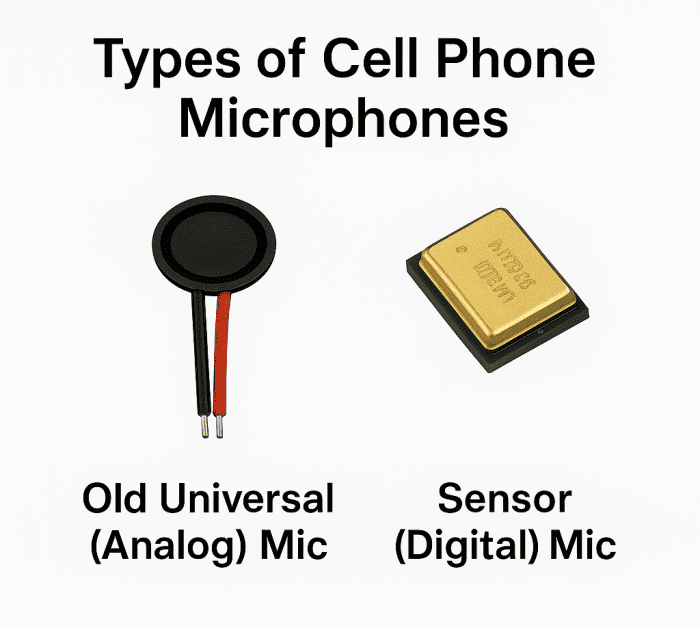
There are 2 types of microphones in cell phones
- Universal mic used in older smartphones and keypad phones
- Latest sensor (Digital) mic used in today’s smartphones.
Multimeter Testing for Older Analog Microphones
Earlier mobile phones and some early smartphones used analog electret condenser microphones. These microphones could be checked using a basic multimeter test.
The commonly used method was:
- Set the multimeter to 20kΩ (resistance mode)
- Connect the probes to the microphone terminals
- Gently blow air into the microphone hole
If the resistance value on the multimeter changed while blowing air, it indicated that the diaphragm was responding to sound pressure and the microphone was likely working.
If there was no change in reading, the microphone was considered faulty.
This method worked because analog microphones generate small electrical variations when sound moves the diaphragm.
However, it is important to understand that this test only confirmed basic diaphragm movement. It did not guarantee sound clarity, noise performance, or real-world call quality.
Why Multimeter Testing Does Not Work on Modern Smartphone Microphones
Modern smartphones use digital MEMS (sensor-based) microphones, not analog microphones.
These microphones:
- Do not operate on resistance-based output
- Communicate using digital data signals
- Require power supply, clock, and data lines
- Do not show meaningful resistance changes on a multimeter
Because of this, digital smartphone microphones cannot be tested directly using a multimeter. Even a perfectly working microphone may show no change or misleading readings.
Using resistance testing on MEMS microphones can result in incorrect diagnosis and unnecessary part replacement.
How Technicians Confirm Digital Microphone Faults
For digital microphones used in smartphones today, the only reliable confirmation method is functional testing, not electrical resistance testing.
Technicians confirm microphone failure by:
- Voice recording tests
- Call and speaker mode testing
- Video recording checks
- Built-in hardware diagnostic menus (where available)
- Replacing or swapping the microphone with a known-good part
If the replacement microphone works correctly in the same phone, it confirms that the original microphone was faulty.
If the issue remains even after replacement, the fault is usually related to:
- Microphone flex cable
- Power or data line issue
- Audio IC
- Logic board or motherboard damage
Common Technician Mistakes to Avoid
Even experienced technicians sometimes misdiagnose mic issues.
Avoid These Errors
- Replacing mic without testing
- Ignoring secondary microphones
- Using low-quality replacement parts
- Skipping software checks
- Not cleaning mic path properly
Good diagnosis saves time, money, and reputation.
Real-World Repair Scenario
A customer complains: “My voice is not clear on calls.”
- Voice recorder works fine
- Video recording works
- Only normal call has issue
Diagnosis:
- Noise cancellation mic faulty
- Not primary mic
Solution:
- Replace top mic flex or disable noise cancellation (temporary)
This is why technician-level testing matters.
Tools Every Technician Should Have for Mic Testing
- Good earphones
- Soft brush and IPA
- Multimeter
- Known-good flex cables
- Diagnostic apps (offline)
- Strong lighting and magnifier
Tools don’t replace skill, but they support accuracy.
When to Replace the Microphone
Replace the mic only when:
- All software tests fail
- Cleaning doesn’t help
- Flex cable confirmed good
- Continuity verified
- Mic input shows no response
Always use quality replacement parts.
Building Trust With Proper Diagnosis
Customers may not understand microphone technology, but they understand honesty.
Explain:
- What you tested
- What failed
- Why replacement is needed
This builds long-term trust and repeat business.
Final Thoughts: Think Like a Technician
Checking a phone microphone is not about pressing record once. It’s about systematic elimination, understanding audio paths, and using experience.
“Diagnosis is the difference between a parts changer and a technician.”
Master these methods, and microphone issues will no longer confuse you.
Simple Summary
- Smartphones have multiple microphones
- Always start with inspection and cleaning
- Test calls, recordings, and videos
- Use diagnostic menus when available
- Rule out software before hardware
- Replace parts only after confirmation
A structured approach saves time and builds expertise.